Edit 5-28-2012: I’ve been going through old posts to update them. There is a much easier way to do this now. Go to settings and create a new Exchange Mail account. Fill in your email and password. Enter m.google.com as the server name and that should be it. I will probably do a full write up on this at a later time.
________________
If you are like me, you like to keep your business calendar separate from your personal calendar. That can be easy to do if you don’t need your second calendar to be synchronized, but if you do want both calendars synchronized, this is how you do it.
This is the way I found to be able to synchronize your Exchange calendar and your Google calendar on your iPhone at the same time.
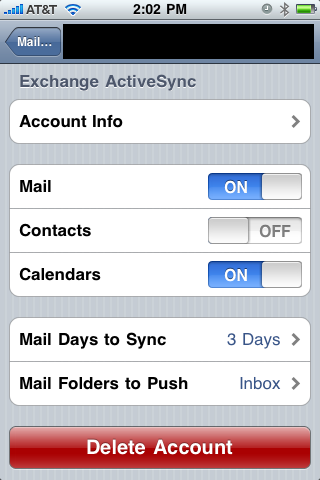
1. Set up your Exchange account on your iPhone.
This is done just like normal. Add all of your Exchange information under mail accounts. I choose to only sync my Mail and Calendar but you can also sync your Contacts if you want.
2. Add the Google calendar to your iPhone.
(This will work for GMail and for Google Apps for Business.)
Go to Settings. Then to Mail, Contacts, Calendar. Go to Add account and click on Other. Once you are at other, click on “Add CalDAV Account.”
For server you will want to enter www.google.com. Your username is your email address and then enter your password. You can enter anything for Description.
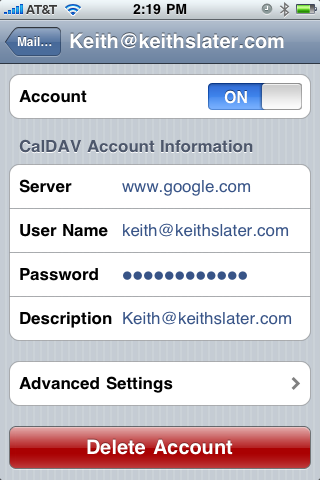
If you are using GMail, you are done at this point and your second calendar should be synced. If you are using Google Apps for Business, there is one more step. Open the account that you created on your iPhone in Settings. Click on the Advanced Settings for the account. You will have to enter an Account URL which is:
https://www.google.com/calendar/dav/[email protected]/user

Once you do this, you are finished.
If you are using a mac, you can take this one step further and do the same thing with iCal. Open iCal, go to Preferences, click Accounts and add a CalDAV account type. Now your Google calendar will be synced on Google, your iPhone and in iCal automatically.